G-Spyke guides / Serpentinite Labs
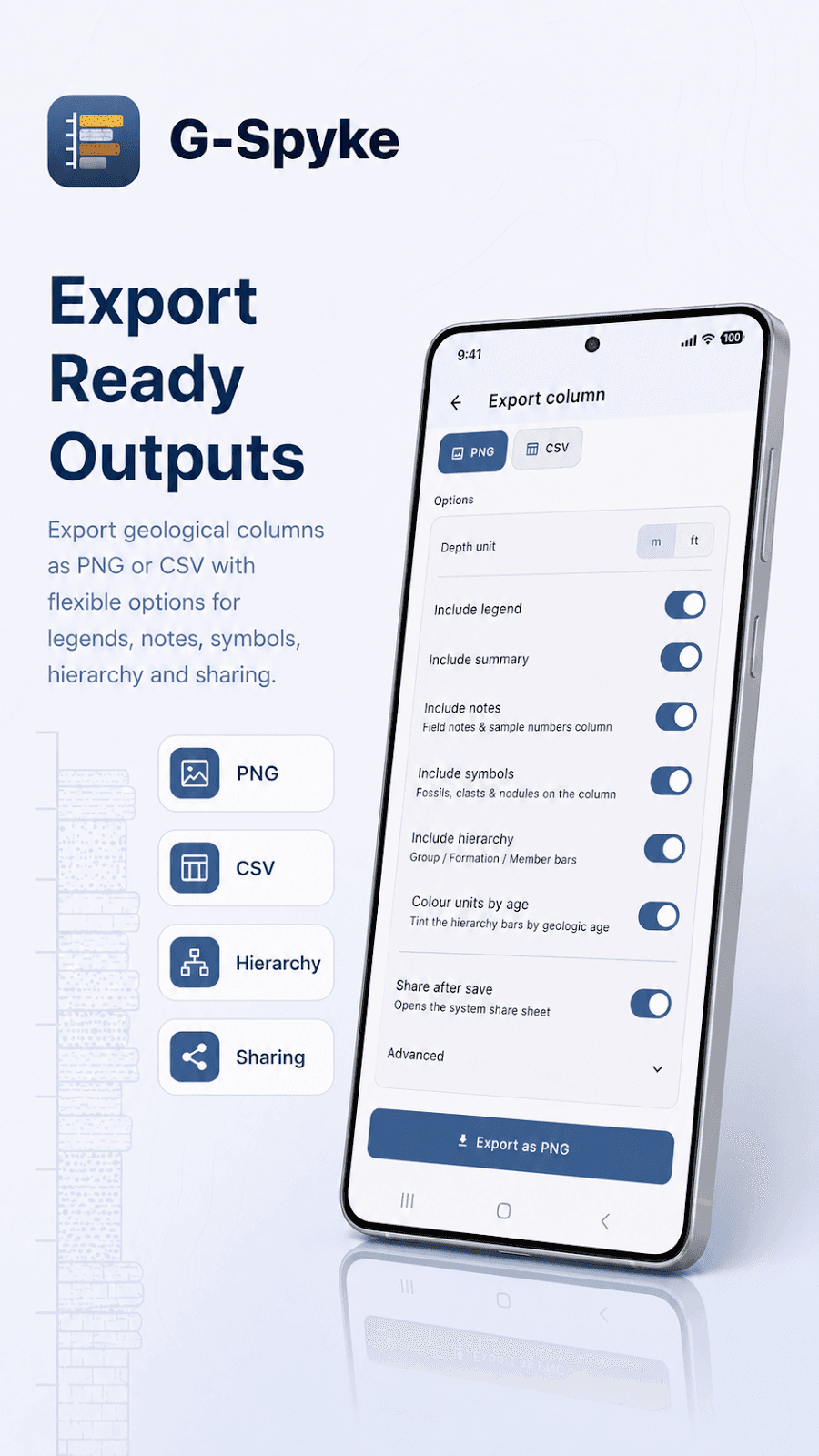
Export geological columns as PNG and CSV
A column image and a data table serve different purposes. G-Spyke offers PNG and CSV exports so you can review the visual section and continue working with its recorded data.
Use PNG for the visual column
Export a PNG when you need an image for discussion or a report. Check the scale, text and symbols at the size you will actually use. Keep the project or section identifier alongside the image so readers can trace it back to the field record.
Use CSV for tabular work
Export CSV when you need to inspect the records in a spreadsheet or another analysis tool. Check the exported column headings before importing; do not assume a particular field schema or that every visual annotation appears in the table.
Validate the import
Confirm the number and order of layers, thickness values, text encoding and decimal interpretation in the receiving software. Keep units explicit. Retain the original export and make changes in a copy so that subsequent analysis can be traced.
Keep the observations available
Store the field photographs and supporting notes with an identifiable section record. Do not treat an exported image as an editable project or a CSV as a universal import format. Available formats and interface details can vary with the installed app version.